Thanks for your feedback!
EDIT
The Data Archive feature allows you to retrieve historical data that has exceeded the retention period of the contracted near-realtime model — that is, recent data kept for fast access (hot data) — which can be important for audits and troubleshooting.
|
This is a feature in beta version. |
The Data Archive feature is activated according to your contract plan.
|
Observe the following usage limits:
Request Limit: Only 1 data recovery request is allowed at a time for the entire environment. You must wait for the current request to finish before starting a new one.
Monthly Limit: Up to 5 requests that result in a successful download are allowed per month for your environment.
Search Window: The time range for each search is, at most, 12 hours.
Storage: The stored volume follows the contracted limit. When this limit is reached, the oldest data is automatically removed (always the oldest day or days) to free space for new data.
To activate the Data Archive feature, contact us to check the activation conditions in your plan or open a ticket following the procedure below.
Access Data Archive from the Analytics main screen or the left sidebar menu.
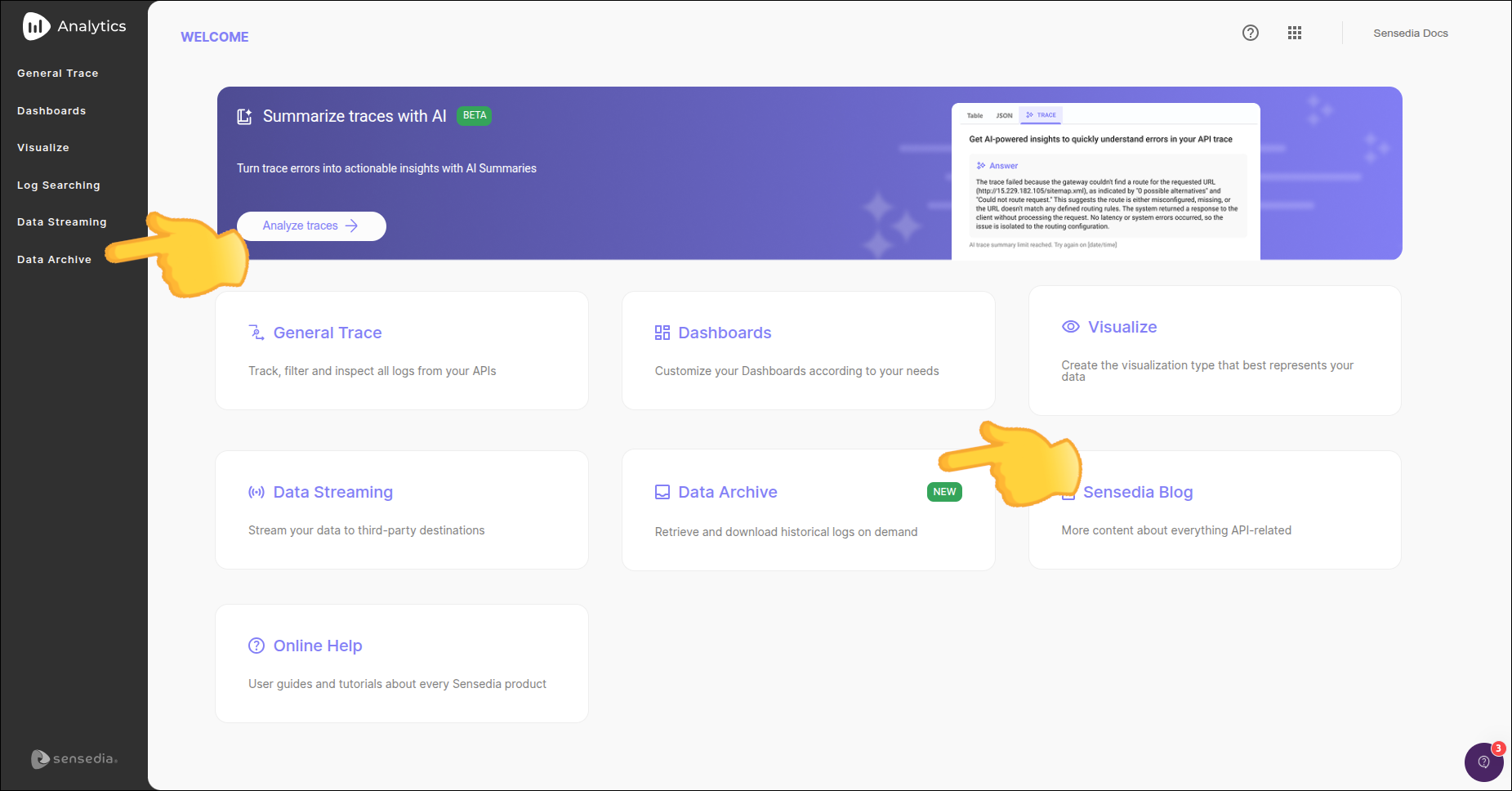
Click the button Request this feature.
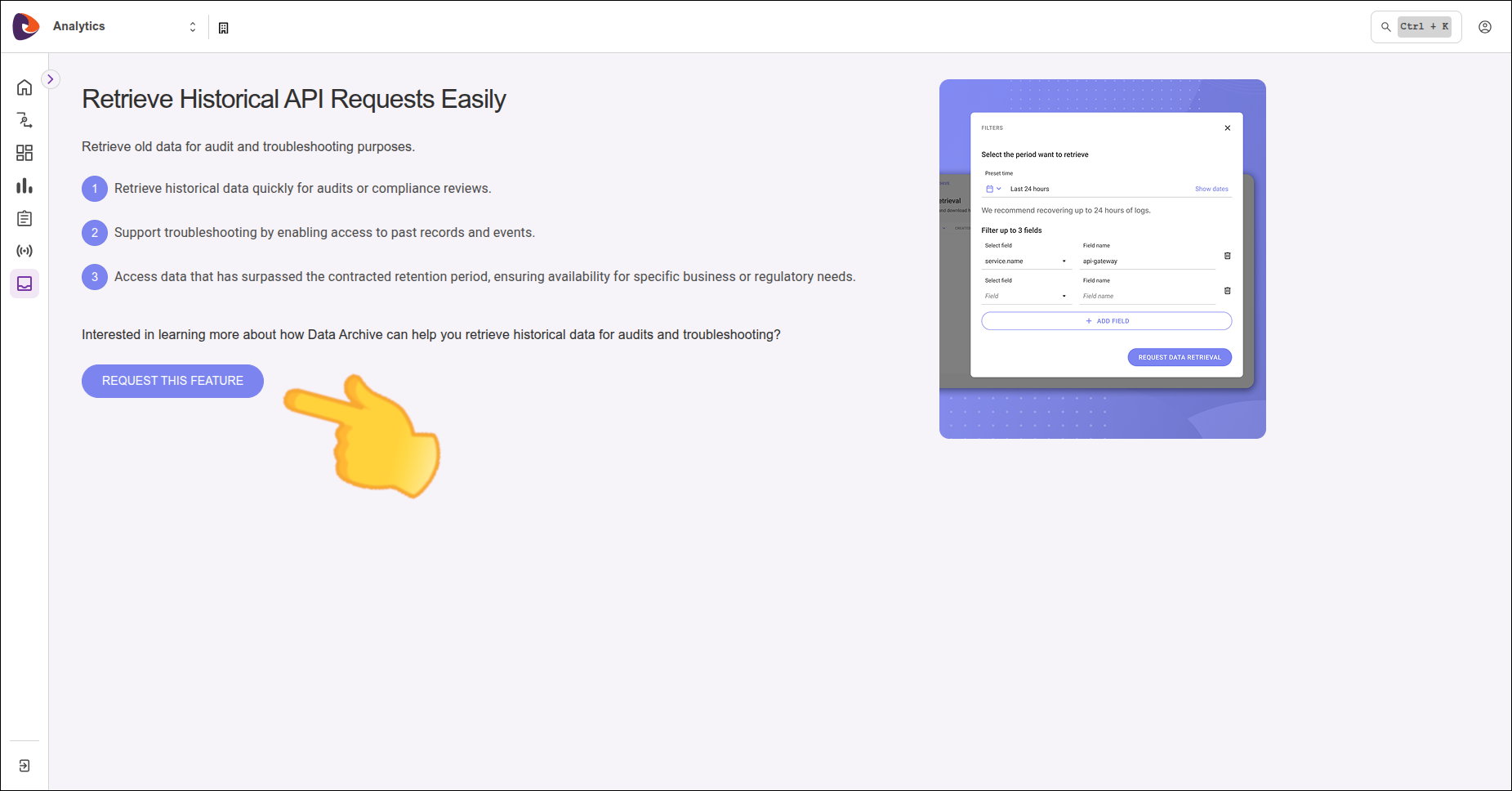
You will be redirected to open a ticket for feature activation.
You can request the retrieval of historical data through the Analytics interface. Data retrieval is an asynchronous process with a return time of up to 48 hours.
To request data retrieval:
Access Data Archive from the Analytics main screen or the left sidebar menu.
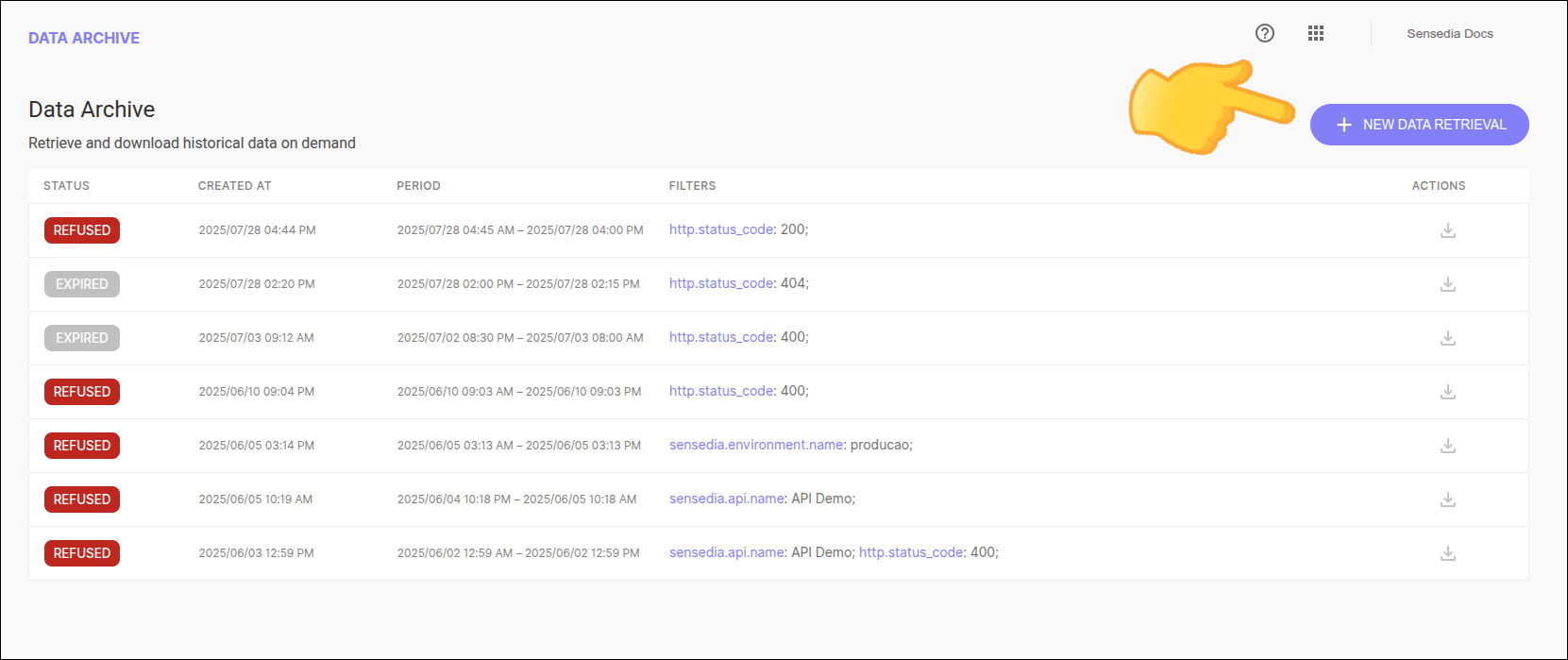
Click the button + NEW DATA RETRIEVAL.
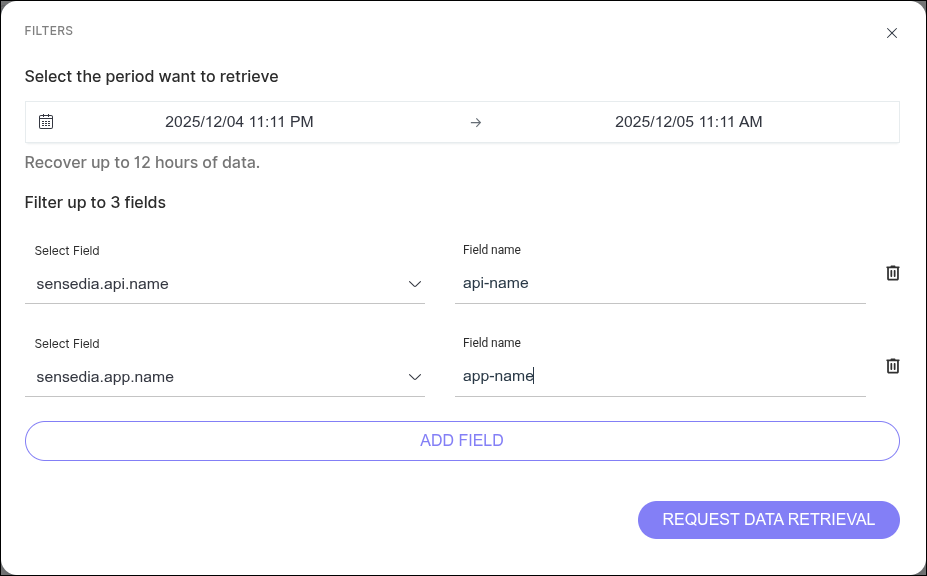
In the request modal, define the Search Period.
| The period cannot exceed 12 hours. |
Optionally, add up to 3 filters to restrict your search. Filters are based on the fields of your General Trace calls index (except fields ending with .keyword).
Click the button Request Data Retrieval.
|
If there is already a retrieval in progress for your environment, the button to create a new request (+ NEW DATA RETRIEVAL) will be blocked. |
After the request is processed, the generated data file is made available for download.
Who can download: Only the user who made the request can download the generated file.
Expiration: The download of the generated file can be done within 2 days. After this period, the file will no longer be accessible and a new request will be necessary.
To download the generated file:
Access Data Archive from the Analytics main screen or the left sidebar menu.
In the list of requests, locate the completed request whose file you want to download. To be able to download the file, the request status must be READY.
Click the download icon in the Actions column corresponding to the request.
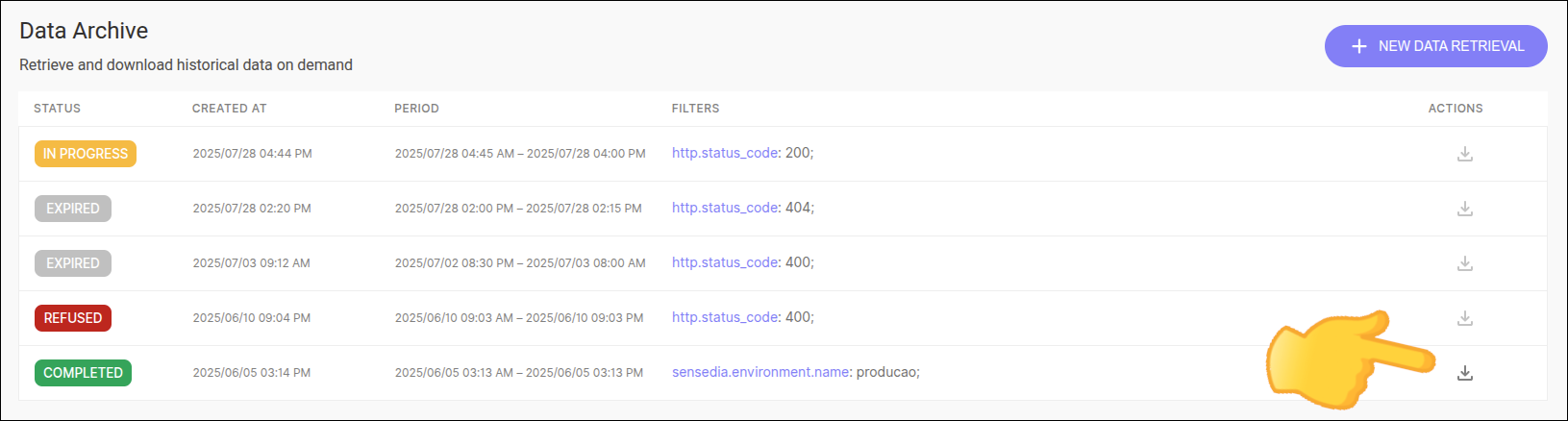
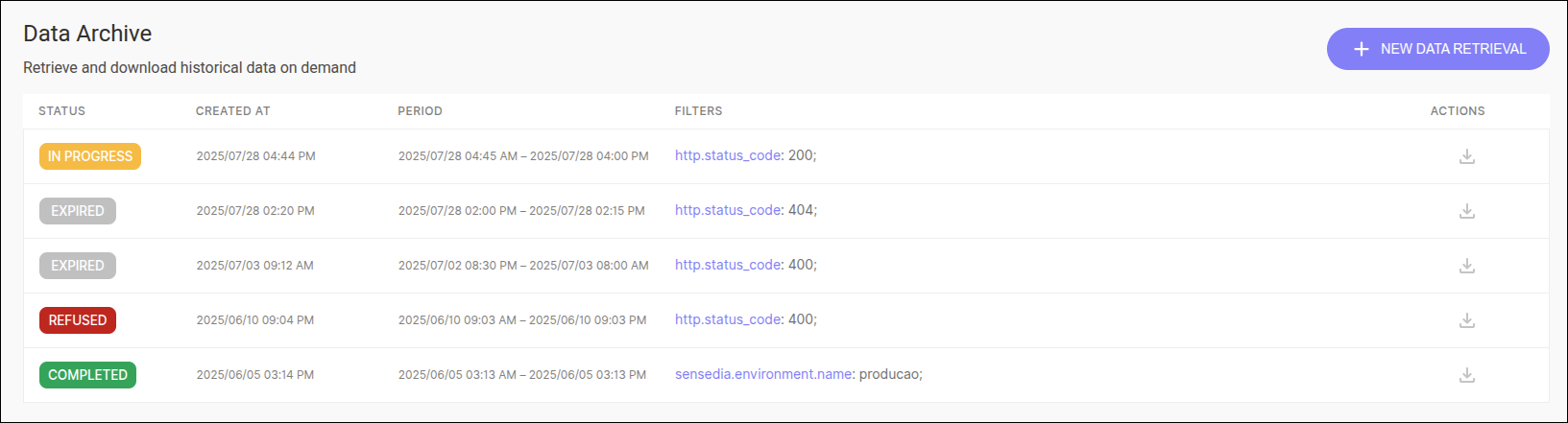
Request Statuses:
REFUSED: The request was refused.
IN PROGRESS: Initial state of every request. It indicates that it is in progress and the file has not yet been generated.
COMPLETED: The request has been completed and the file is available for download.
EXPIRED: The period for downloading the file has expired.
The file generated after retrieval is a compressed file that contains API call records in JSON format.
See a simplified example of the data structure contained in the file:
{
"apiName": "Test API",
"resourceId": 280767,
"completeUrl": "GET https://api-sample.sensedia-eng.com/sample/test
",
"appDeveloper": "test",
"apiComponentType": "OPERATION",
"billing": true,
"trace": "[{"timeMillis":20,"message":"Choosing route between 316 possible alternatives", ... }]",
"environmentName": "Staging",
"operationName": "Test API GET /sample",
"resultStatus": 200,
"requestHeaders": "host: randomapi.sensedia.com\nuser-agent: Mozilla/5.0 ...",
"responseHeaders": "date: Mon, 13 May 2024 13:58:54 GMT\ncontent-type: application/json",
"billingData": {
"accessTokenBalance": "4",
"appBalance": "2",
"accessTokenBillingQuota": "3",
"appBillingQuota": "1",
"billingValue": "123"
},
"receivedOnDate": "2024/05/13 13:58:53 +0000"
}|
The example above has been reduced for easier reading. |
Share your suggestions with us!
Click here and then [+ Submit idea]